
If you want to watch live TV, sports, news, or on-demand content through IPTV on your Firestick, the process can be simple, but only if you follow the right setup path. A lot of guides make it seem more complicated than it really is, or they push sketchy apps that create more problems than solutions. The better approach is to use a legal IPTV provider, install apps from the official Amazon Appstore when possible, and make sure your Firestick is optimized before you start. Amazon’s official Fire TV help pages confirm that Fire TV supports app downloads, software updates, and app cache management, while Amazon Silk is available on Fire TV for browser-based access. VLC for Fire is also officially available in the Amazon Appstore and supports network streaming protocols.
Your IPTV service will be provided within 30 minutes.
Table of Contents
What IPTV Means on Firestick
IPTV stands for Internet Protocol Television, which means television content is delivered over the internet instead of through traditional cable or satellite systems. On a Firestick, IPTV usually works in one of three ways: through your provider’s dedicated Fire TV app, through a web portal opened in Silk Browser, or through a trusted media player that can handle network streams or playlist files. VLC for Fire is one of the most commonly used legitimate player options because Amazon lists it in the Appstore and describes it as supporting multimedia files and network streaming protocols. VideoLAN’s documentation also explains that playlist formats such as M3U are commonly used to organize streaming sources.
What You Need Before You Begin
Before setting up IPTV on Firestick, make sure you have a few essentials ready. First, you need a working Firestick or Fire TV device with a stable internet connection. Second, you need an active account with a legal IPTV provider. Third, you need your login details, activation code, or playlist URL, depending on how your provider delivers service. It is also smart to clear out unused apps if your Firestick is low on storage, because streaming apps tend to work better when the device has enough free space and fewer background issues.
You should also update the Firestick before installing anything. This is one of the simplest ways to avoid app crashes, compatibility issues, and playback problems later. Amazon’s official Fire TV support confirms you can manually check for system updates from device settings.
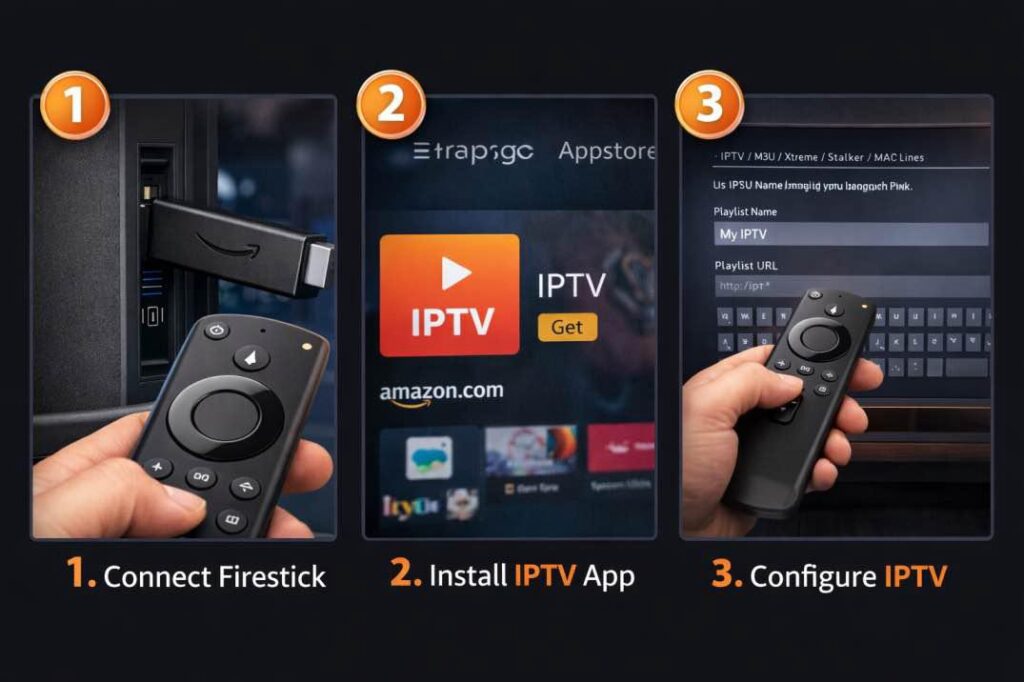
Step 1: Update Your Firestick Software
Start by updating the Fire TV operating system. On your Firestick, go into the settings menu, open the device or system section, and look for the option to check for updates. If an update is available, install it before moving on.
This step matters more than most people realize. An outdated Firestick can cause app login failures, streaming instability, audio sync issues, or random crashes that have nothing to do with your IPTV provider. By updating first, you give yourself the best chance of a smooth setup from the start. Amazon’s official help pages specifically advise using the built-in “Check for System Update” option to install the latest Fire TV software.
Step 2: Install Your IPTV App from the Amazon Appstore
The easiest and safest way to set up IPTV on Firestick is to install your provider’s official app directly from the Amazon Appstore. From the Fire TV home screen, use the search function to look up your provider’s app by name. If it appears in the Appstore, download and install it.
This is the cleanest setup because it usually gives you a proper TV-friendly interface, easier navigation, and automatic support for your provider’s account system. Amazon’s Fire TV help hub includes official support for downloading apps on Fire TV devices, which is the recommended route whenever the app exists.
Once the app is installed, open it and enter the login details your provider gave you. In many cases, that will be a username and password. Some services use an activation code instead. Others may ask for a portal URL along with your credentials. Follow the exact formatting your provider supplied. One small typo is often enough to make the login fail.
Step 3: Use a Trusted Player if Your Provider Gives You a Playlist
Some IPTV providers do not offer a dedicated Firestick app. Instead, they may provide a playlist URL or file, often in M3U format. In that case, you need a player that can handle that type of stream. VLC for Fire is one legitimate option because Amazon’s Appstore listing says it supports network streaming protocols, and VideoLAN’s documentation explains that M3U is a playlist format used to point to media locations line by line.
After installing VLC for Fire from the Amazon Appstore, open the app and add the stream or playlist information exactly as provided by your IPTV service. This method can work well for users who want a lightweight player rather than a provider-branded interface. It is especially useful when the service gives you direct streaming credentials but no dedicated Fire TV software.
Step 4: Use Silk Browser if Your IPTV Provider Has a Web Portal
Another common setup method is browser access. Some IPTV services provide a website where you log in and stream directly, without needing a separate app. In that case, you can use Amazon Silk on Firestick.
Amazon’s official Silk documentation confirms that Silk is available on Fire TVs and is actively maintained as Amazon’s web browser for Fire devices. That makes it a practical option for IPTV providers that rely on web-based dashboards or browser playback.
To do this, open Silk on your Firestick, type in the provider’s official portal address, and sign in with your credentials. If the portal works well, bookmark it so you can open it faster in the future. This method is not always as polished as a native app, but it is often the easiest fallback when your provider is web-first.
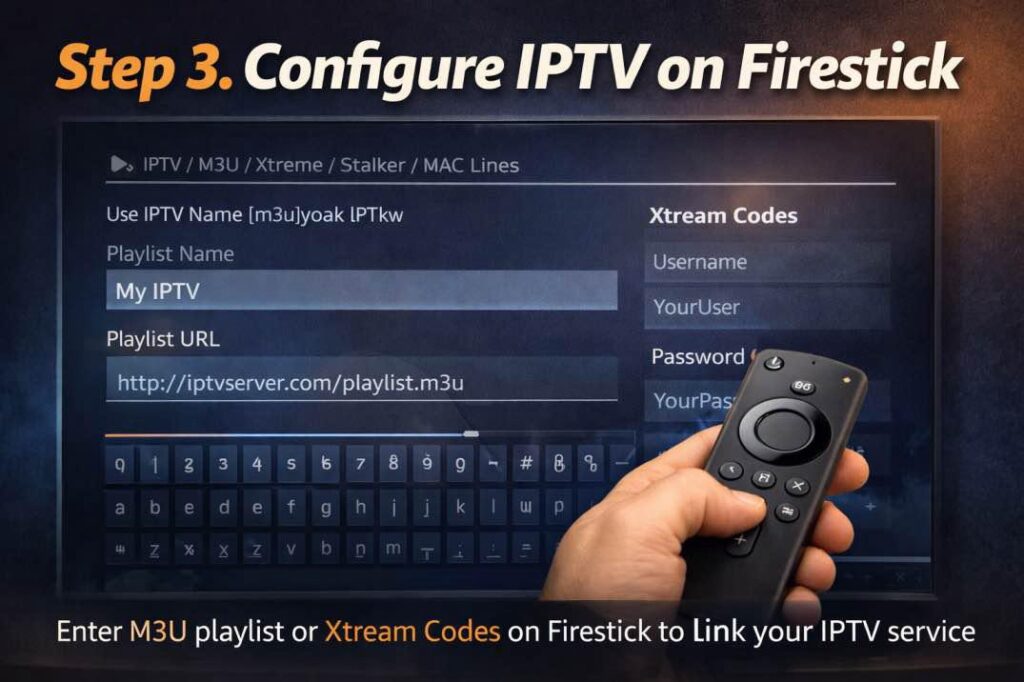
Step 5: Improve the Viewing Experience
Once your IPTV is running, spend a few minutes making the interface easier to use. Move the app to the front of your home screen. Save favorite channels if that option exists. Organize categories so that live TV, movies, and sports are easy to find. If you are using a browser portal, bookmark the login page and test a few channels to make sure playback is stable.
This small bit of setup saves time later and makes the Firestick feel more like a proper TV platform instead of a device you constantly have to tinker with.
How to Fix IPTV Problems on Firestick
Even with a correct setup, you may run into issues. The good news is that most of them are fixable in a few minutes.
Buffering and Freezing
If IPTV keeps buffering, first test your internet connection and try another channel to see whether the issue is channel-specific. Then restart the Firestick. If the app has video quality settings, lower the stream quality temporarily to test whether bandwidth is the problem.
If performance remains inconsistent, check for a Fire TV software update. Outdated firmware can affect streaming behavior and app stability. Amazon’s Fire TV support continues to recommend updating device software as part of troubleshooting.
App Crashes or Slow Performance
If your IPTV app crashes, fails to launch, or becomes sluggish, clear its cache. Amazon provides official Fire TV guidance for clearing app data and cache to resolve app issues and free up storage. Start by clearing cache first. If that does not work, clear app data and sign in again.
This is one of the most effective fixes for apps that worked well at first but became unstable over time.
Silk Browser Playback Issues
If you are watching IPTV through a web portal and the browser stops loading correctly, close Silk and reopen it. If the issue continues, clear browser-related data and restart the Firestick. Browser-based streaming can sometimes be less stable than app-based playback, so if your provider later releases an official Fire TV app, that is usually the better long-term option.
Is IPTV on Firestick Legal?
The Firestick itself is completely legal. The real issue is whether the IPTV service you are using has the rights to distribute the channels, programs, movies, or live events it offers. That is why it is important to choose licensed services and avoid providers that cannot clearly explain what they are authorized to stream.
The U.S. Copyright Office states that uploading or downloading copyrighted works without authorization is an infringement of copyright, and the DMCA remains a key part of U.S. copyright law in the online environment. In practical terms, use IPTV services that are properly licensed and transparent about their content rights.
Best Tips for a Better IPTV Experience on Firestick
If you want IPTV to work smoothly over the long term, keep these habits in place.
Use official apps when available. Update Fire TV software regularly. Clear app cache when performance drops. Restart the Firestick from time to time. Avoid installing a pile of unnecessary apps that eat storage and memory. And most importantly, use a provider with real customer support and clear setup instructions.
A good IPTV experience usually comes down to three things: a legal provider, a well-maintained app or player, and a Firestick that is not overloaded.
FAQ
What is the easiest way to set up IPTV on Firestick?
The easiest way is to install your IPTV provider’s official app from the Amazon Appstore, sign in with the credentials they provide, and test a few channels. This is simpler and usually more stable than trying to build a custom setup.
Can I use IPTV on Firestick without a dedicated app?
Yes. If your provider offers a web portal, you can access it through Amazon Silk on Fire TV. Amazon’s official Silk documentation confirms the browser is available on Fire TVs. If your provider gives you a playlist or stream URL instead, you can use a compatible player such as VLC for Fire.
Do I need VLC for IPTV on Firestick?
Not always. If your provider has an official Fire TV app, that is usually the best option. VLC is mainly useful when your provider supplies a direct stream or playlist instead of a dedicated app.
Why does IPTV keep buffering on my Firestick?
Buffering can happen because of internet speed issues, overloaded device storage, outdated software, or a problem with the IPTV service itself. Restarting the Firestick, reducing stream quality, and clearing app cache are good first steps. Amazon’s official support specifically recommends clearing app cache and keeping Fire TV software updated when resolving app problems.
Is Silk Browser good for IPTV on Firestick?
It can be, especially if your provider only offers browser access. But if a proper Fire TV app exists, the app usually gives a better user experience because it is built for remote navigation and full-screen playback.
Is IPTV legal on Firestick?
Yes, if the IPTV provider is licensed to distribute the content it offers. The device is legal; the legality depends on the service and whether it has permission to stream that content.
Conclusion
Setting up IPTV on Firestick is not difficult when you keep the process simple. Update the device first, install your provider’s official app if one exists, use Silk if the service is browser-based, or choose a reputable player like VLC for Fire when you are working with a playlist or stream URL. Amazon officially supports Fire TV app downloads, software updates, and cache clearing, while Silk and VLC provide legitimate ways to access supported streams and portals on Fire devices.